Setup PostgreSQL on Amazon RDS using Terraform
Deploy the database in the private network and store the database secret on AWS Secret Manager.
Before continuing this tutorial, you will need to set up the AWS VPC beforehand. If you don’t have a reference you can follow this AWS VPC setup tutorial to do so.
Previously, we have learned how to set up an AWS VPC using Terraform. Now, we are going to deploy our PostgreSQL database inside that VPC using Terraform, specifically in its private subnet. Why would we do that? We want our database can’t be accessed by everyone outside of the network and it’s a good security practice to do so. Then, how can we access our database from our local? We can set up a VPN to access our database which I’ll cover all the processes in another tutorial later. For now, let’s focus on the database.
Prepare The Terraform Syntax
Continuing our first tutorial code structure, we will create a new folder called database . By continuing our previous article, here is our structure now.
├── database
│   ├── main.tf
│   ├── outputs.tf
│   ├── security-group.tf
│   └── variables.tf
├── main.tf
├── outputs.tf
├── terraform.tfstate
├── terraform.tfstate.backup
├── terraform.tfvars
├── variables.tf
└── vpc
    ├── main.tf
    ├── outputs.tf
    └── variables.tf
Under database folder, we have four files that are intuitive enough to describe what would be inside the file. Let's create those files and copy-paste this code below to each file.
On the main.tf we create the subnet group before creating the database, this subnet group will become the host location of our database. All the variables are passed down from main.tf file from the root folder. The outputs.tf is used to export the database URL which will be stored later in AWS Secret Manager. We also create a security group for our database, with this security group we can define which port is opened and which IP can access the database. Lastly, we have to import this database module into our root main.tf file. Import the module and pass all variables down to the database module.
As you can see, on the line 21 and line 22 we import the outputs from vpc module, those are vpc_id and vpc_private_subnet_ids . When we execute the command, magically Terraform will obtain those variables from the module that we've created previously. Awesome!
Review and Apply Terraform Changes
Now, let’s re-initialize our syntax first so Terraform acknowledges our new database module by running:
$ terraform initWhen the modules have been initialized, now we want to review what resources are going to be created. Go back to the terminal and run:
$ terraform planIf everything is already correct, now let’s apply our changes by running:
$ terraform applyTerraform will read and send the configuration to AWS to create the resource. It takes a few minutes to apply the changes.
Verifying The Amazon RDS on the AWS Console
By now, all the resources should be created in AWS. Let’s verify by opening the RDS console in AWS. Here is the result in the AWS console.

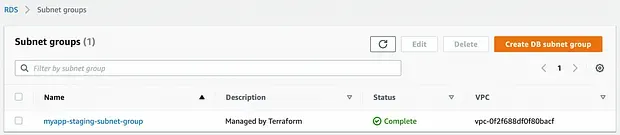

AWS RDS and its resources have been created in AWS.
Store The Database URL on AWS Secret Manager
Lastly, as I said earlier, we are going to store the database credentials from the output in the database module. Let's create a new folder on our Terraform codebase called app , and now our folder structure looks like this.
.
├── app
│   ├── secret.tf
│   └── variables.tf
├── database
│   ├── main.tf
│   ├── outputs.tf
│   ├── security-group.tf
│   └── variables.tf
├── main.tf
├── outputs.tf
├── terraform.tfstate
├── terraform.tfstate.backup
├── terraform.tfvars
├── variables.tf
└── vpc
    ├── main.tf
    ├── outputs.tf
    └── variables.tf
Once those files are created, copy-paste the code below to each file that we’ve created.
Now, let’s apply again our changes by running:
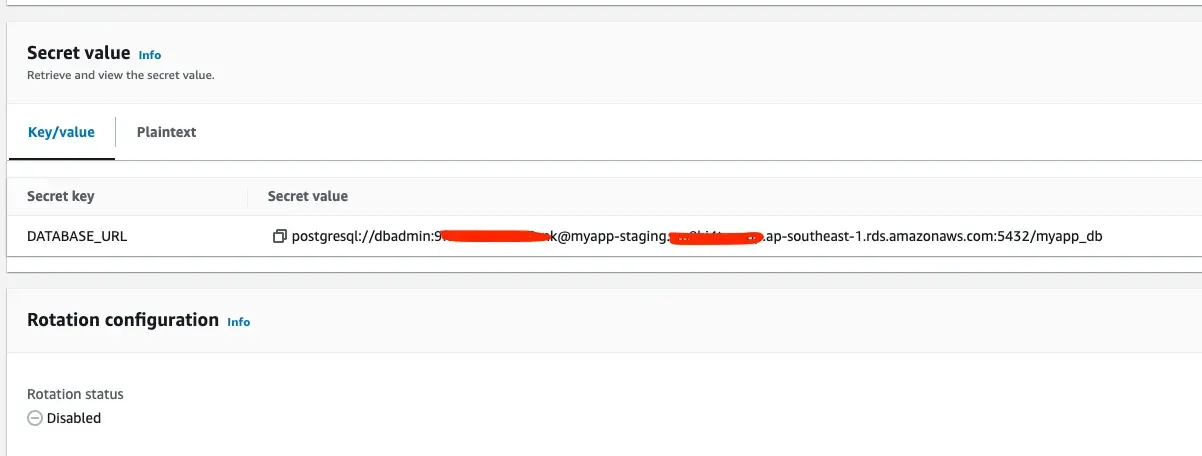
$ terraform applyVoila! When we check AWS Secret Manager, our database secret is created and securely stored.
Conclusion
That’s all! We have learned how to set up a PostgreSQL instance on AWS RDS within a private network (VPC) and securely store the database credential under AWS Secret Manager. We still have many things to cover in this Terraform tutorial series such as: how to manage Terraform state, how to deploy your dockerize web app or job on ECS, how to set up an S3 bucket and the CDN, and many more.
As always, don’t forget to clean up everything after you finish this tutorial to stop incurring charges. To destroy the already created database run the following:
$ terraform destroy -target module.app
$ terraform destroy -target module.database